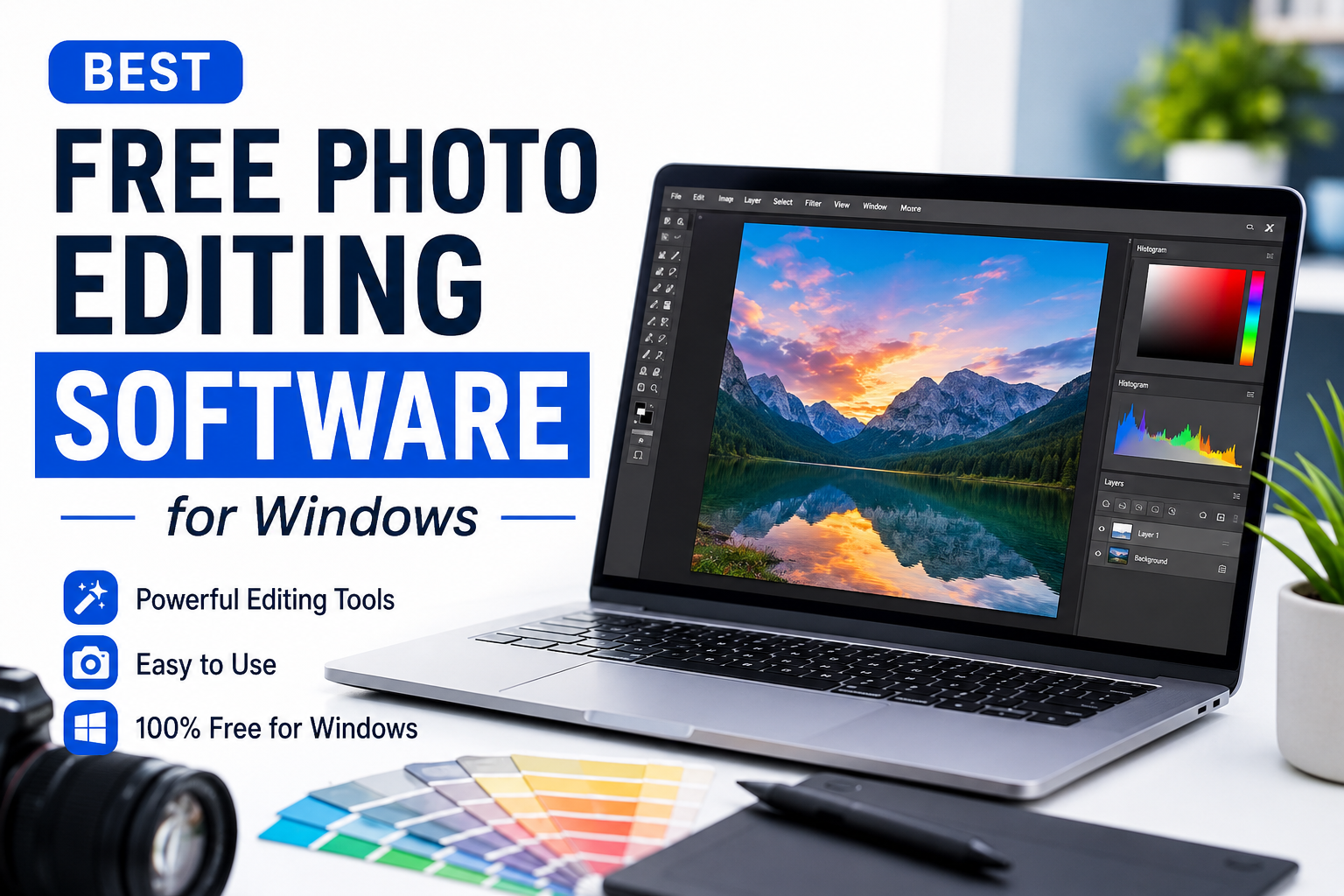
Photo editing has become a normal part of using a computer today. Whether I am working on blog images, social media posts, personal pictures, screenshots, or simple graphics, I often need some kind of photo editing software. The good thing is that I do not always need to pay for expensive professional software to get good results.
There are many free photo editing software options available for Windows users. Some are very simple and suitable for beginners, while others offer advanced tools that can be useful for more serious editing. In my experience, choosing the right software depends on what I want to edit and how much control I need over the final image.
In this article, I will discuss some of the best free photo editing software for Windows and explain what makes each option useful.
Why Use Free Photo Editing Software
The main reason I prefer free photo editing software is simple. I can edit my images without spending money on expensive subscriptions. For students, beginners, bloggers, and casual users, this can make a big difference.
Free editing programs can handle many common tasks. I can crop an image, resize it, adjust brightness, improve colors, remove unwanted parts, add text, and make basic corrections without paying anything.
Another advantage is that free software gives beginners an opportunity to learn. Before investing in professional software, I think it is better to understand the basics of photo editing first.
GIMP
GIMP is one of the first free photo editing programs I would recommend to Windows users. It has been around for many years and offers a large collection of tools for image editing.
What I like about GIMP is the amount of control it provides. It supports layers, masks, brushes, filters, selections, color adjustments, and many other features. These tools make it possible to work on projects that require more than basic editing.
For example, if I want to remove a background, create a simple graphic, adjust different parts of an image separately, or work with multiple layers, GIMP gives me the tools to do that.
The interface can feel slightly complicated when I first use it, especially if I have never used professional editing software before. However, after spending some time learning the interface, it becomes much easier.
For advanced free photo editing on Windows, GIMP is one of the strongest choices in my opinion.
Paint.NET
Paint.NET is another excellent option, especially for people who want something simpler than GIMP. I find it useful when I need to perform quick edits without dealing with too many complicated tools.
It supports layers, effects, adjustments, selections, and several other useful features. The interface is relatively clean, which makes it easier for beginners to understand.
I would choose Paint.NET when I need to crop an image, resize it, adjust colors, add some effects, or make simple changes. It is also useful for creating basic graphics.
One thing I appreciate about Paint.NET is that it does not feel overwhelming. Beginners can start with simple tools and gradually explore more features as their skills improve.
PhotoScape X
PhotoScape X is another free photo editing application that I find useful for everyday editing. It is designed with simplicity in mind and includes several tools beyond normal photo editing.
It can be used for editing, resizing, cropping, creating collages, adding text, and applying different effects. The collage feature can be particularly useful when I want to combine several pictures into one image.
I think PhotoScape X is a good choice for people who do not want a complicated professional interface. It provides many useful features while keeping the editing process relatively straightforward.
For bloggers and social media users, this can be a convenient option because many common editing tasks can be completed quickly.
Pixlr
Pixlr is a popular image editing option that can be used through a web browser. This makes it different from traditional Windows editing programs because I do not necessarily need to install a large application.
I find browser based editors useful when I am working on another computer or when I want to edit something quickly. Pixlr provides tools for cropping, resizing, adjusting colors, adding text, and applying effects.
The biggest advantage for me is convenience. I can open the editor, upload an image, make the changes I need, and save the result.
However, browser based editing depends on having a reliable internet connection. If I want an editor that works completely offline, I would prefer software such as GIMP or Paint.NET.
Fotor
Fotor is another option worth considering for basic photo editing. It focuses on making image editing accessible to regular users.
I can use it for tasks such as adjusting brightness, improving colors, adding effects, creating simple designs, and making collages. Its interface is designed to make common editing tasks easier.
I think Fotor can be useful for people who are not interested in learning complicated editing techniques. If my goal is simply to make a photo look cleaner or more attractive, I do not always need a professional editing environment.
Some features may be limited depending on the version or plan, so I would always check which tools are available for free before starting a larger project.
Canva
Canva is widely known as a design platform, but I also consider it useful for basic photo editing. It works particularly well when I need to combine photos with text, shapes, backgrounds, or other design elements.
For example, if I am creating a blog featured image, social media graphic, presentation image, or simple poster, Canva can save me a lot of time.
Its templates are also useful for beginners because I do not have to create everything from an empty canvas. I can choose a suitable design and customize it according to my needs.
I would not choose Canva for advanced photo manipulation, but for simple designs and content creation, I think it is one of the easiest options available.
Adobe Photoshop Express
Adobe Photoshop Express is a simplified photo editing option from Adobe. It is designed more for quick and easy edits than complex professional projects.
I can use it for basic adjustments, filters, cropping, resizing, and other common editing tasks. The interface is easier to understand than the full version of Photoshop.
For someone who likes the Adobe ecosystem but does not need professional level features, Photoshop Express can be worth trying.
The free features are useful for everyday editing, although some advanced features may require payment.
What Should Beginners Choose
If I were helping someone who had never edited a photo before, I would not recommend starting with the most complicated program.
For a beginner, Paint.NET or PhotoScape X can be a good starting point. Both provide useful editing features without making the learning process unnecessarily difficult.
If someone wants to learn advanced photo editing, I would recommend GIMP. It takes more time to understand, but it offers much more control.
For people who mainly create social media posts, blog graphics, or simple designs, Canva can be a practical choice.
The best software is not necessarily the one with the most features. In my opinion, the best software is the one that matches the work I actually need to do.
Features I Look For in Free Photo Editors
Before choosing an editor, I usually look at a few important features. The first is basic editing support. Cropping, resizing, rotating, brightness adjustment, contrast, and color correction are essential.
Layers are also important if I want more control over my project. They allow me to edit different elements separately instead of changing the entire image at once.
I also look at export options. A good editor should allow me to save images in commonly used formats such as JPG and PNG.
Another thing I consider is performance. Some editing programs can use a lot of computer resources. If I am using an older Windows computer, I prefer software that runs smoothly without slowing everything else down.
Finally, I consider the interface. Powerful software is not very useful to me if I cannot understand how to use its basic tools.
Tips for Better Photo Editing
Having good software is only one part of photo editing. I also think learning a few basic editing habits can make a big difference.
First, I try not to over edit my pictures. Too much saturation, sharpness, or contrast can make an image look unnatural.
I also recommend keeping the original photo before making major changes. This gives me a backup if I do not like the final result.
When resizing images, I pay attention to quality. Making an image extremely large can reduce its sharpness, while making it too small can remove important details.
I also try to use the correct file format. JPG is usually convenient for photographs because it keeps file sizes relatively small. PNG can be better when I need transparency or want to preserve certain graphic elements.
Final Thoughts
Free photo editing software has improved a lot, and I do not think everyone needs expensive professional software. For everyday editing, there are plenty of free options that can handle common tasks.
GIMP is my choice when I need advanced control and more professional editing features. Paint.NET is great when I want a simple Windows editor. PhotoScape X is useful for everyday editing and collages. Pixlr and Fotor are convenient for quick editing, while Canva is excellent for combining photos with text and design elements.
My advice is to start with the software that feels easiest for you. Try a few different programs and see which interface and tools suit your workflow. There is no single editor that is perfect for everyone.
The most important thing is to practice. Once I understand basic concepts such as cropping, layers, colors, brightness, contrast, and image quality, I can create much better results even with completely free software. For Windows users who want to edit photos without spending money, these free tools provide more than enough features to get started.