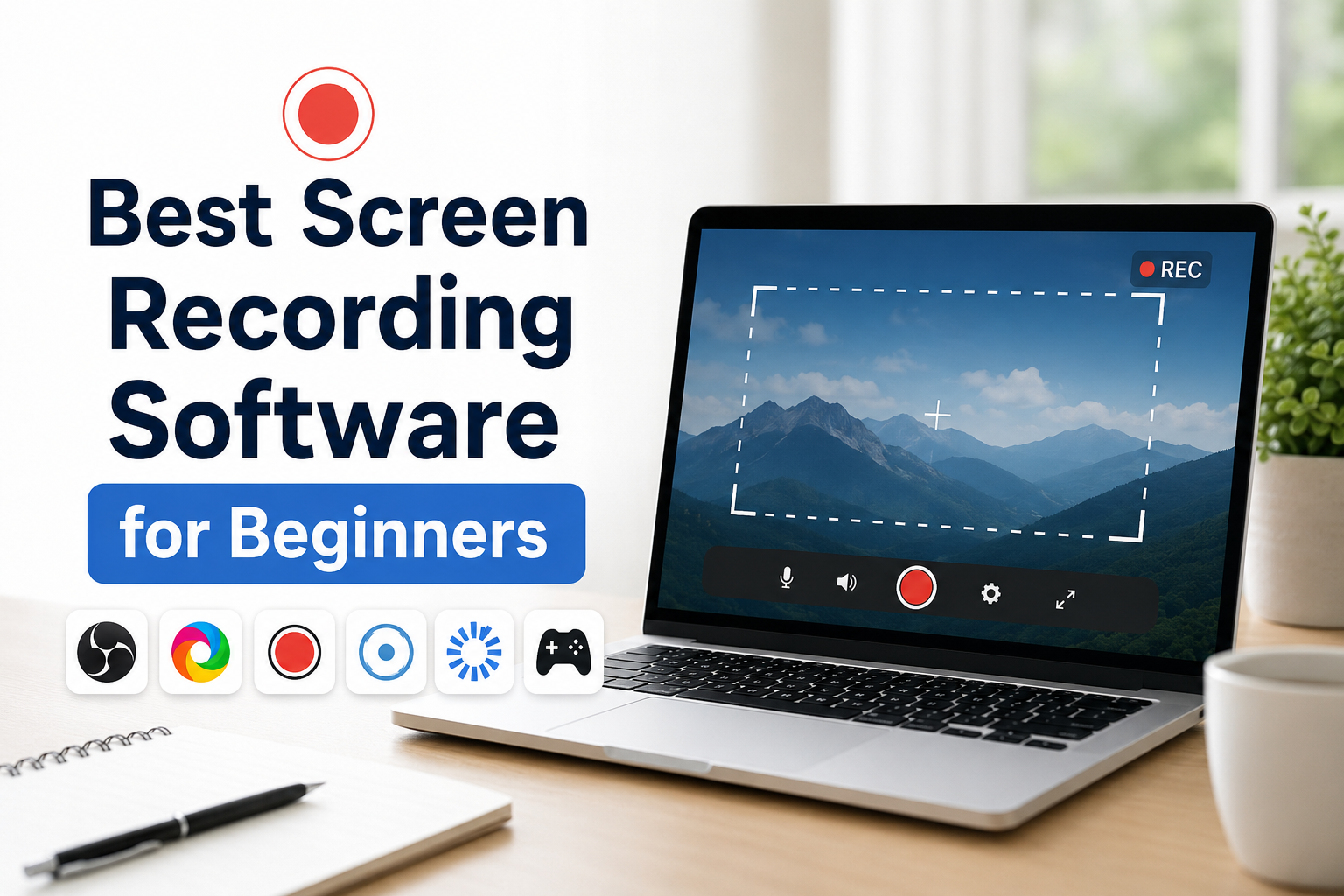
When I first started recording my computer screen, I thought it would be a difficult process. I assumed I would need expensive software and a powerful computer to create good quality videos. After trying several screen recording programs, I realized that beginners do not need complicated tools. What they really need is software that is easy to understand, simple to use, and capable of producing clear recordings without too many confusing settings.
Screen recording software has become useful for many different purposes. Students use it to record presentations and online classes. Teachers create tutorials for their students. Gamers record gameplay. Bloggers and YouTubers make how to videos. Even office workers use screen recording to explain software problems or create training material.
In my experience, the best screen recording software for beginners is not always the one with the most advanced features. It is the one that lets me start recording quickly while still giving me enough control to create a professional looking video. In this article, I will share my thoughts on some of the best screen recording software options for beginners and explain what makes each one useful.
Why Beginners Need Simple Screen Recording Software
As a beginner, I do not want to spend hours learning complicated menus before recording my first video. I want software where I can open it, select my screen, press the record button, and start.
Simple screen recording software usually offers features like recording the full screen, selecting a specific window, capturing microphone audio, recording system sound, and saving videos in common formats. These features are enough for most beginners.
Another important thing for me is reliability. If I record a twenty minute tutorial and the software crashes, all my work is lost. Good beginner software should be stable and easy to trust.
OBS Studio
OBS Studio is one of the most popular screen recording programs available today. The best part is that it is completely free.
At first, OBS looked a little intimidating to me because it has many options. However, after watching a few beginner tutorials, I found the basic recording process quite simple. I created a scene, added my screen as a source, and clicked the record button.
What I like most about OBS Studio is its flexibility. I can record my entire desktop, a specific application, my webcam, and my microphone at the same time. This makes it perfect for tutorials and YouTube videos.
The recording quality is excellent, and I can adjust the resolution and frame rate according to my computer.
For someone who wants to grow from a beginner into a more experienced content creator, OBS Studio is a great choice because it offers plenty of advanced features without requiring payment.
The only downside is that the interface may feel overwhelming during the first few days. Once I understood the basic layout, it became much easier to use.
ShareX
ShareX is another free screen recording tool that I think is ideal for Windows users.
I originally knew ShareX as a screenshot tool, but it also includes screen recording features. Its interface is lightweight, and it does not consume many system resources.
I find ShareX especially useful when I need to record a short demonstration. For example, if I want to show someone how to change a setting in Windows, I can quickly select the recording area and capture the process.
ShareX also offers several ways to capture the screen. I can record the entire display or select a specific region. This makes it convenient when I only want to show one application.
For beginners who mainly need quick recordings rather than complex video production, ShareX is a practical option.
Bandicam
Bandicam is one of the easiest screen recorders I have used. Its interface is very beginner friendly, and the buttons are clearly labeled.
When I open Bandicam, I can immediately choose whether I want to record the entire screen, a selected area, or a specific program. I do not have to search through complicated menus.
Bandicam is known for producing high quality recordings while keeping file sizes relatively manageable. This is helpful when I need to upload videos online.
The free version does have some limitations, including a watermark and recording time restrictions. However, it is still useful for trying out the software before deciding whether to purchase it.
I would recommend Bandicam to beginners who value simplicity and do not mind using a paid program later if they need more features.
ScreenPal
ScreenPal, previously known as Screencast O Matic, is another beginner friendly screen recording solution.
What I appreciate about ScreenPal is how straightforward it feels. The recording controls are simple, and I can start capturing my screen within seconds.
It is particularly useful for educational content. If I want to create a lesson or explain a website, I can record my screen while speaking through my microphone.
ScreenPal also includes basic editing tools. After recording, I can trim unwanted sections instead of needing separate editing software. For beginners, having recording and editing in one place can save a lot of time.
The free version is suitable for simple recordings, while the paid version unlocks additional features.
Loom
Loom takes a slightly different approach to screen recording. Instead of focusing only on saving video files to the computer, it is designed for quickly sharing recordings online.
I find Loom extremely convenient when I need to explain something to another person. I can record my screen and webcam together, stop the recording, and then share a link.
This is useful for team communication, customer support, or sending instructions to friends and colleagues.
The interface is very clean, and I believe it is one of the easiest screen recording tools for complete beginners.
The main limitation is that it relies heavily on cloud sharing. If someone prefers to keep everything stored locally, other programs may be a better fit.
Xbox Game Bar
Many Windows users do not realize that they already have a screen recorder installed on their computers.
Xbox Game Bar comes built into Windows and is surprisingly easy to use. I simply press the keyboard shortcut, and the recording controls appear.
Although it was originally created for gamers, I have used it to record applications and tutorials as well.
The biggest advantage is convenience. There is nothing to install, and it works well for recording programs.
It does have some limitations compared to dedicated screen recording software. It is not as flexible when selecting custom screen regions, but for quick recordings, it works well.
Which Software Is Easiest for Beginners?
After trying different options, I think the answer depends on what someone wants to record.
| Software | Ease of Use | Best For |
|---|---|---|
| OBS Studio | Easy after learning basics | Tutorials and YouTube |
| ShareX | Very easy | Quick screen recordings |
| Bandicam | Very easy | High quality recordings |
| ScreenPal | Very easy | Educational videos |
| Loom | Extremely easy | Sharing videos online |
| Xbox Game Bar | Extremely easy | Quick Windows recordings |
For someone recording their first screen video, I would probably suggest Xbox Game Bar or Loom because they require almost no setup.
For someone planning to create YouTube tutorials regularly, OBS Studio would be my top recommendation because it provides more room to grow.
Features I Think Beginners Should Look For
When choosing screen recording software, I believe beginners should focus on a few important features rather than getting distracted by advanced options.
The first is ease of use. If the software feels confusing, it can discourage someone from creating videos.
The second is audio recording. A clear microphone recording is essential for tutorials and presentations.
The third is video quality. Most beginners should look for software that supports Full HD recording, which is enough for most online platforms.
The fourth is file format. Saving videos as MP4 makes them easier to upload and share.
Finally, basic editing features can be very helpful. Being able to trim the beginning or end of a recording saves time and avoids the need for another program.
Tips for Recording Better Videos
Over time, I have learned that good screen recordings are not only about software. A few simple habits can make a big difference.
Before recording, I close unnecessary applications so notifications do not appear on the screen.
I also prepare what I am going to explain before pressing the record button. Even a short outline helps me speak more clearly.
Using a decent microphone improves the recording more than many people expect. Viewers are usually more forgiving of average video quality than poor audio.
I also try to keep the screen clean. Hiding unnecessary desktop icons and closing unrelated browser tabs makes the video easier to follow.
Finally, I watch the recording once before uploading it. This allows me to catch mistakes or sections that need trimming.
Free Versus Paid Screen Recording Software
One question beginners often ask is whether they should pay for screen recording software.
From my experience, free software is enough for many people. OBS Studio and ShareX provide excellent recording capabilities without costing anything.
Paid software becomes useful when someone needs extra convenience, built in editing, or customer support.
I do not think a beginner should immediately spend money on recording software. It makes more sense to start with a free tool and only upgrade after understanding what additional features are actually needed.
My Final Thoughts
Choosing the best screen recording software for beginners does not have to be complicated. I have found that the most important thing is finding a program that feels comfortable and lets me focus on the content instead of the technical details.
For quick and simple recordings, Xbox Game Bar and Loom are excellent choices. If I need a lightweight free tool, ShareX is very useful. Bandicam stands out for its simple interface and high quality recordings. ScreenPal is a strong option for teachers and students who want basic editing tools included.
If I had to recommend just one program for someone who wants to keep improving, I would choose OBS Studio. Although it takes a little time to understand at first, it offers everything a beginner needs and continues to be useful as skills improve. It is free, reliable, and capable of producing professional quality recordings.
In the end, the best screen recording software is the one that encourages someone to start creating. Beginners do not need every advanced feature available. They need a tool that is easy to learn, works consistently, and helps them turn their ideas into clear and useful videos. Once they become comfortable with recording, they can always explore more advanced features and software options as their needs grow.