PDF files are everywhere these days. I use them for documents, assignments, forms, notes, invoices, books, and many other things. The good thing about PDF files is that they usually keep the same layout on different devices. The problem starts when I need to edit something inside a PDF. A simple change like correcting a word, adding a sentence, or signing a document can become confusing if I do not have the right software.
When I first started working with PDF files, I thought editing them would be difficult. Many PDF programs looked complicated and included features that I did not even understand. Over time, I found that there are several easy PDF editing software options that beginners can use without having advanced technical knowledge.
In this article, I will explain what I look for in easy PDF editing software and which features can make PDF editing simple for beginners.
What Is PDF Editing Software?
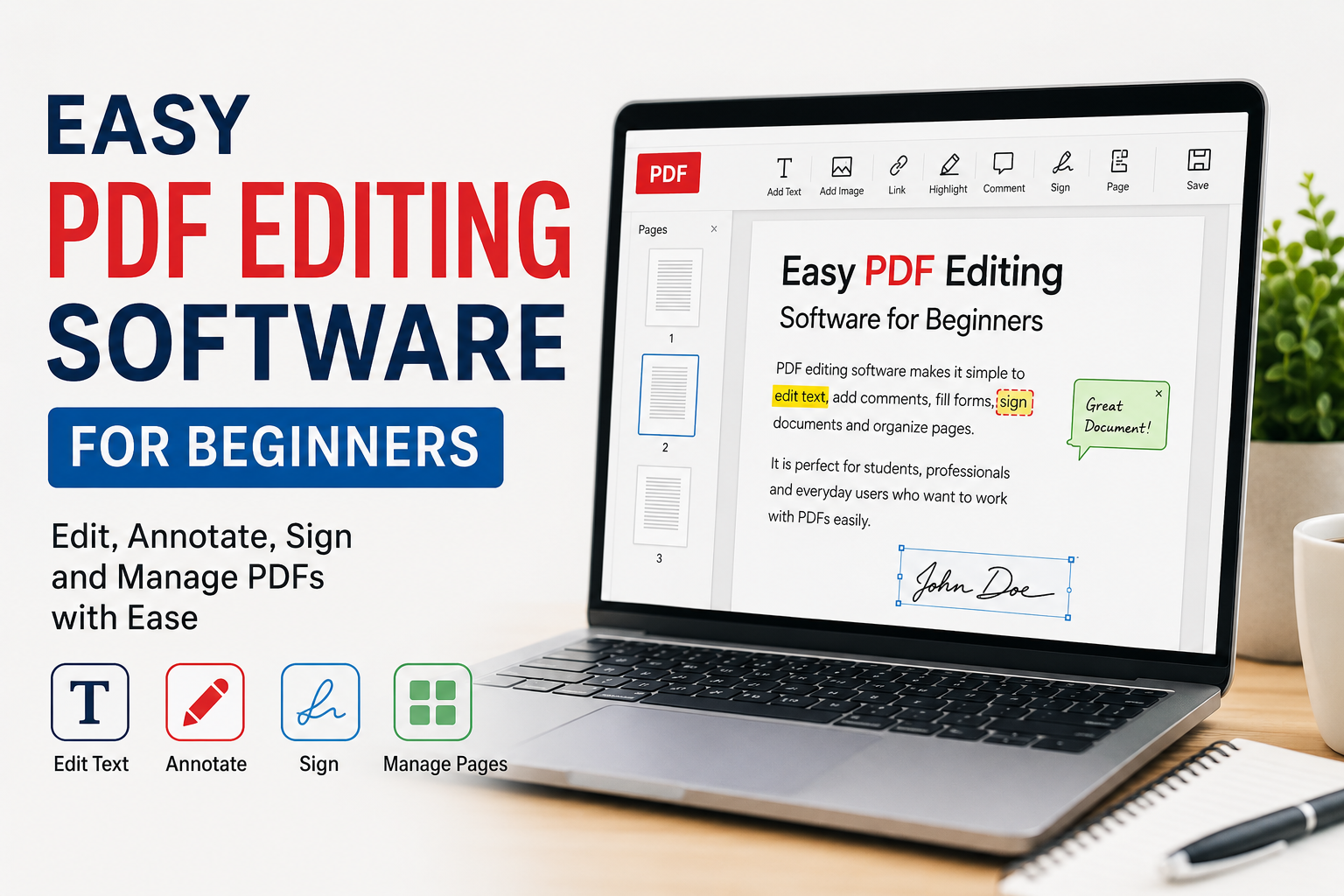
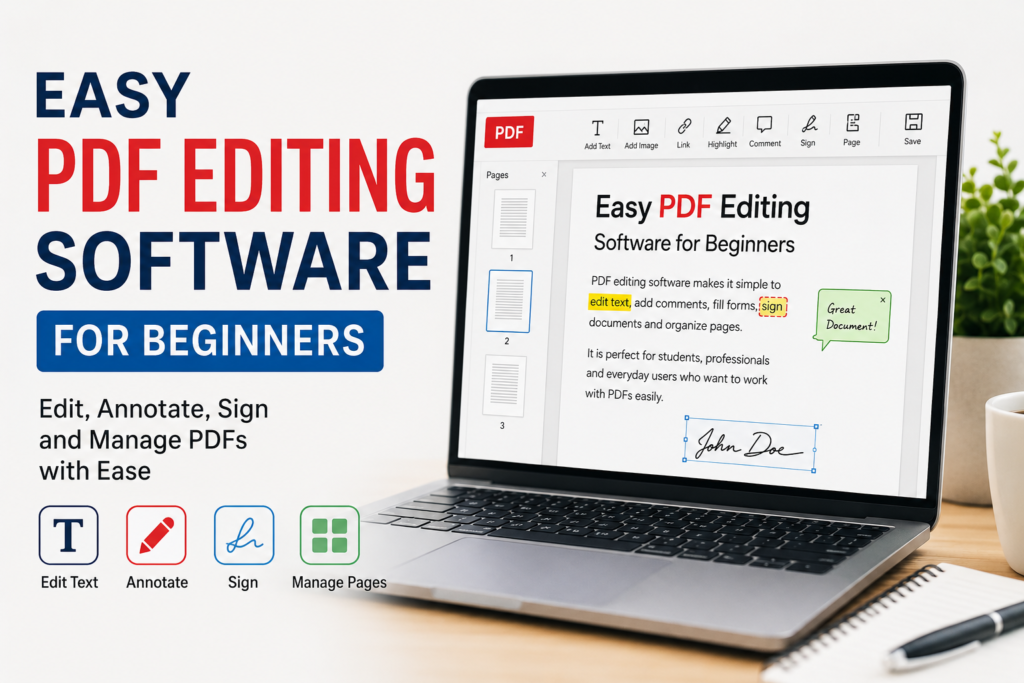
PDF editing software is a program that allows you to make changes to PDF documents. Depending on the software, you can edit text, add images, highlight important information, insert shapes, sign documents, add comments, rearrange pages, and sometimes convert PDFs into other file formats.
Not every PDF reader can edit a document. A basic PDF reader may only allow you to open and read files. If you want to change the actual content, you need a PDF editor.
For beginners, I think the best software is not necessarily the one with the largest number of features. Instead, I prefer software that has a clean interface and makes common tasks easy to understand.
Why Beginners Need Easy PDF Editors
PDF editing can be useful in many everyday situations. Students may need to add information to assignments or fill out forms. Office workers may need to correct documents or add signatures. Freelancers may need to edit invoices and contracts. Even regular users sometimes need to fill out applications or add notes to PDF files.
The biggest advantage of easy PDF editing software is that it saves time. Instead of creating a document again from the beginning, I can open the PDF, make the required changes, and save it.
A simple interface also reduces mistakes. When software is too complicated, beginners can accidentally change the layout or delete important information. Easy software usually keeps the main tools visible and organized.
Adobe Acrobat
Adobe Acrobat is one of the most well known PDF solutions available. I consider it a good choice for people who want a complete PDF editing experience.
With Acrobat, users can edit text, add images, fill forms, sign documents, organize pages, and perform many other tasks. Its interface is designed around common PDF functions, so beginners can gradually learn more features as they use the program.
One thing I like about Acrobat is that it is useful for both basic and advanced PDF work. A beginner can start with simple editing and later explore more features.
However, some advanced features require a paid plan. For someone who only needs occasional PDF editing, this can be an important consideration.
PDFgear
PDFgear is another option that I find interesting for beginners. It focuses on making common PDF tasks easier without requiring users to understand complicated settings.
You can use it for tasks such as editing, annotating, organizing, and working with PDF documents. The interface is relatively straightforward, which makes it easier for new users to understand.
I think software like this is useful for students and casual users who want practical tools without spending a lot of time learning the program.
Smallpdf
Smallpdf is especially useful for people who prefer working through a web browser. Instead of installing a large program, you can use its online tools for different PDF tasks.
It offers features for editing, compressing, converting, merging, splitting, and managing PDF files. The tools are generally simple to understand.
From my point of view, the biggest advantage is convenience. If I am using a different computer and do not have a PDF editor installed, an online tool can be helpful.
However, I would always be careful when uploading private or sensitive documents to an online service. For confidential files, I prefer using trusted software directly on my computer when possible.
PDF XChange Editor
PDF XChange Editor is another useful choice, especially for Windows users. It provides many PDF tools while still offering an interface that beginners can learn.
You can add text, comments, highlights, shapes, and other annotations. It also provides tools for managing PDF pages and documents.
What I like about this type of software is that it gives beginners room to grow. You can start with simple functions and learn more advanced options later.
Foxit PDF Editor
Foxit PDF Editor is designed for users who want more than a basic PDF reader. It includes tools for editing text, adding images, creating forms, signing documents, and managing PDF files.
The software can be useful for both personal and professional work. I think it is a good option for users who regularly work with PDFs and want more control over their documents.
Like other professional PDF editors, some features may require payment. It is worth checking the available plans before choosing it.
Important Features I Look For
When I choose PDF editing software, I do not simply look at how many features it has. I focus on whether those features are actually useful.
The first thing I look for is text editing. A good editor should make it easy to select existing text and make small changes without disturbing the entire document.
Another important feature is adding text. Sometimes a PDF does not allow direct editing of existing content, but I still need to place new information on the page.
I also find annotation tools very useful. Highlighting, underlining, drawing, and adding comments can help when studying or reviewing documents.
Page management is another feature worth having. A good PDF editor should allow users to rearrange, delete, rotate, or add pages easily.
Signing documents can also be important. Many PDF editors allow users to add an electronic signature without printing the document.
How to Edit a PDF as a Beginner
Editing a PDF does not have to be difficult. Once you choose your software, open the PDF file inside the program.
Look for an option such as Edit, Edit PDF, or Modify. Selecting this option should activate the editing tools.
If you want to change text, click on the text you want to edit. Depending on the document, you may be able to type directly into it.
To add new text, select the text tool and click where you want the new information to appear.
If you want to highlight something, choose the highlight tool and select the relevant text.
After making your changes, I recommend checking the entire document before saving. Sometimes editing can affect spacing, fonts, or page layout.
Finally, save the edited file with a new name. I prefer keeping the original PDF untouched so I can return to it if something goes wrong.
Free or Paid PDF Software?
This is one of the most common questions beginners have. In my opinion, the answer depends on how often you edit PDFs.
If you only edit PDFs occasionally, a free tool may be enough. You can usually perform basic tasks such as adding text, highlighting information, filling forms, and making simple annotations.
If you work with PDF files every day, a paid editor may be worth considering. Professional software can provide advanced editing, document conversion, form creation, security options, and other features.
I would not pay for a large collection of features that I will never use. I think beginners should first identify their actual needs and then choose software accordingly.
Things to Check Before Choosing Software
Before installing or purchasing a PDF editor, I recommend checking a few things.
First, make sure it supports your operating system. Some programs work better on Windows, while others are designed for Mac or web browsers.
Second, check whether the features you need are available in the free version. Sometimes software advertises itself as free but places important functions behind a paid plan.
Third, look at the interface. A program can have hundreds of features, but if you cannot find the tools you need, it may not be useful for you.
Security is also important. Only download software from reliable sources. Avoid suspicious websites that offer modified or unknown versions of PDF programs.
My Advice for Beginners
If you are completely new to PDF editing, I recommend starting with the simplest tasks. Do not try to learn every feature on the first day.
Start by opening a PDF and learning how to add text. Then learn how to highlight information, add comments, insert images, and manage pages.
After you become comfortable with these tools, you can explore features such as PDF conversion, form creation, signatures, and document protection.
I also recommend making a copy of an important PDF before editing it. This small habit can save you from losing the original document.
Final Thoughts
Easy PDF editing software can make everyday document work much simpler. Whether you are a student, freelancer, office worker, or regular computer user, having a reliable PDF editor can save both time and effort.
From my point of view, beginners should focus on simplicity rather than choosing software with the largest feature list. Programs such as Adobe Acrobat, PDFgear, Smallpdf, PDF XChange Editor, and Foxit PDF Editor can provide different levels of PDF editing depending on your needs.
The best choice depends on what you actually want to do. If you only need simple edits, a basic or free solution may be enough. If you regularly work with professional documents, investing in a more complete PDF editor can make sense.
I believe the most important thing is to choose software that feels comfortable to use. Once you understand the basic tools, PDF editing becomes much easier, and tasks that once seemed complicated can be completed in just a few minutes.