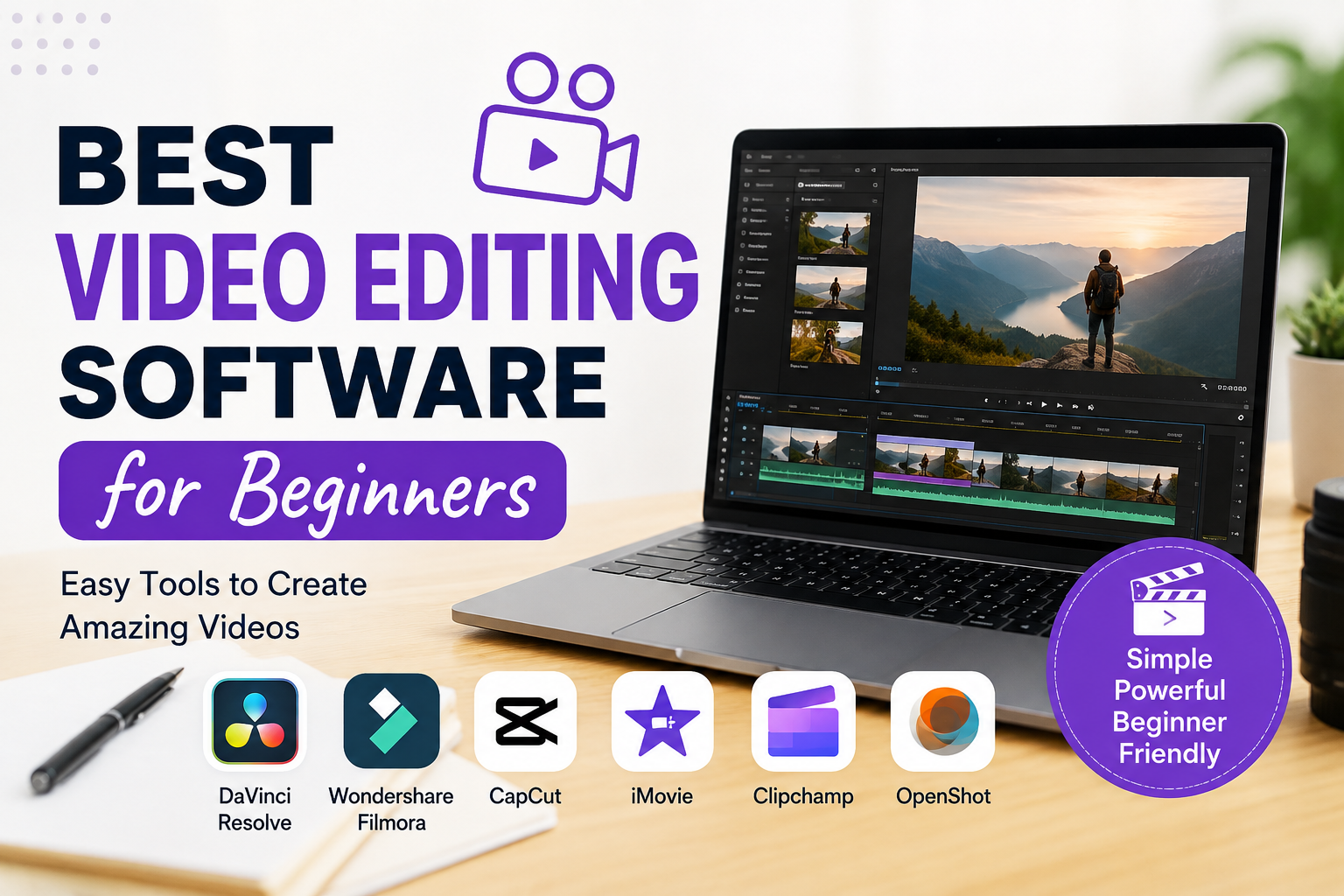
When I first started learning video editing, I thought I needed an expensive computer and professional editing software to create good videos. After trying different tools, I realized that beginners do not need complicated software. What matters more is choosing an editor that is easy to understand and gives you enough features to practice and improve.
Today, there are many video editing programs available for Windows, Mac, and even mobile devices. Some are completely free, while others offer paid plans with advanced features. In my opinion, beginners should start with software that has a simple interface, useful basic tools, and enough room to grow.
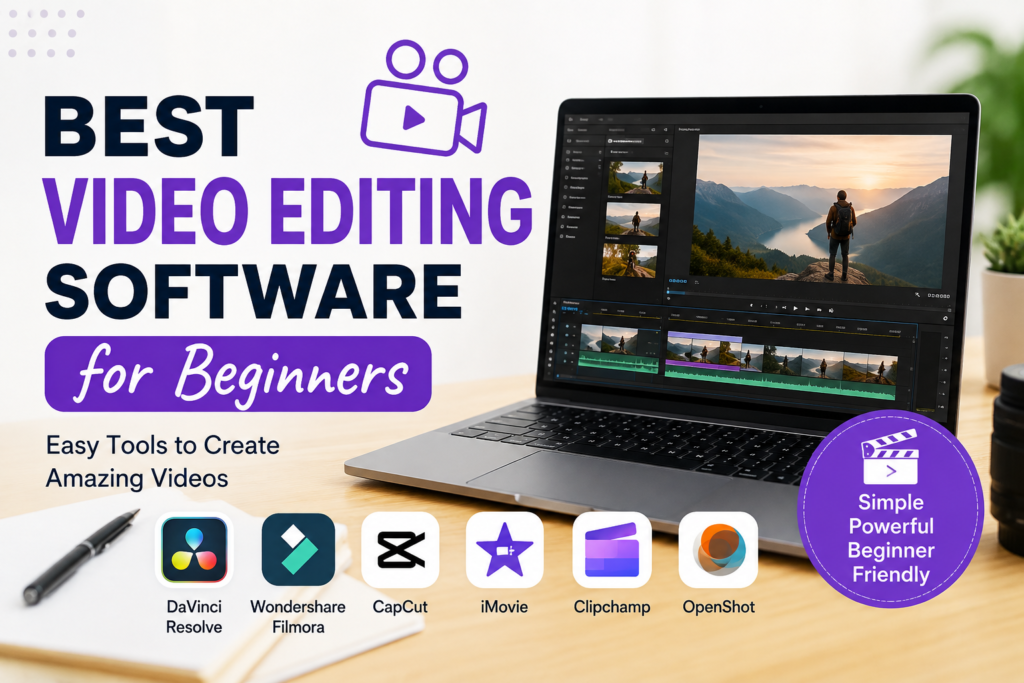
In this article, I will share some of the best video editing software for beginners and explain what makes each option useful.
What Should Beginners Look For in Video Editing Software?
Before choosing an editor, I think it is important to understand what features actually matter. Beginners often make the mistake of choosing software simply because it has hundreds of features. More features do not always mean a better experience.
I recommend looking for a clean interface that makes it easy to find the timeline, media library, preview window, and editing tools. Basic features such as trimming, cutting, splitting, adding music, adjusting audio, adding text, and exporting videos should be easy to use.
Another important thing is performance. If the software is too demanding for your computer, editing can become frustrating. A beginner friendly program should work reasonably well on an ordinary computer.
It is also useful to choose software that supports common video formats and different resolutions. This gives you more flexibility when creating videos for YouTube, social media, presentations, or personal projects.
1. CapCut
CapCut is one of the easiest video editing applications for beginners. I like it because the interface is relatively simple and many common editing tools are easy to access.
You can trim clips, split videos, add text, insert music, use transitions, adjust video speed, and apply different effects. It also provides templates and other creative tools that can help beginners create attractive videos without having advanced editing knowledge.
One reason I would recommend CapCut to a beginner is that you can start experimenting almost immediately. You do not need to spend a long time learning complicated menus.
It can be useful for short social media videos, YouTube content, educational videos, and simple personal projects.
2. DaVinci Resolve
DaVinci Resolve is another excellent choice, especially for beginners who want to learn professional video editing over time. At first, it may look more complicated than some beginner focused editors, but it offers a huge amount of functionality.
The free version includes many powerful editing tools. You can cut clips, work with multiple tracks, adjust colors, edit audio, add effects, and create professional looking videos.
What I particularly like about DaVinci Resolve is that you can start with basic editing and gradually learn more advanced features. You do not necessarily need to change software when your skills improve.
However, beginners should be prepared to spend some time learning the interface. If you are looking for the simplest possible editor, another option may be easier at the beginning.
3. Adobe Premiere Elements
Adobe Premiere Elements is designed for people who want powerful editing features without the complexity of professional editing applications.
I think it is a good option for beginners who prefer guided editing. The software provides tools that can help users understand different editing techniques while creating their projects.
You can perform common tasks such as trimming clips, adding transitions, creating titles, improving audio, and organizing your media.
The biggest advantage is that it is designed with everyday users in mind. If you want to learn video editing without immediately dealing with a professional workflow, Premiere Elements can be a comfortable starting point.
4. Wondershare Filmora
Filmora is another video editor that I find beginner friendly. Its interface is easy to understand, and many tools are presented in a straightforward way.
You can import videos, place them on the timeline, cut unwanted sections, add music, insert text, use transitions, and apply effects.
Filmora is especially useful for people who want to create YouTube videos, tutorials, family videos, presentations, and social media content.
One thing I like about Filmora is the balance between simplicity and features. It does not feel as intimidating as some professional editing programs, but it still provides enough tools for users who want to create more advanced projects later.
5. iMovie
For Mac and Apple device users, iMovie is one of the easiest places to begin. It is designed to make video editing accessible to people who may have never edited a video before.
You can import your clips, arrange them on a timeline, trim unwanted sections, add music, create titles, and apply simple transitions.
The interface is clean, which makes it easier to understand the basic editing process. I think iMovie is particularly good for students, families, and beginners who want to make simple videos without learning complicated software.
If you are using Apple devices and only need basic editing features, iMovie can be a very practical choice.
6. Clipchamp
Clipchamp is another convenient option for beginners, particularly Windows users. It provides a simple editing environment where you can combine video clips, images, audio, text, and other elements.
I like the fact that beginners can understand the basic workflow without spending too much time studying complicated tools.
Clipchamp can be useful for creating presentations, social media videos, simple YouTube content, and other everyday projects.
For someone who wants a straightforward editor rather than a professional production environment, it is worth considering.
7. OpenShot
If you are looking for a free and open source video editor, OpenShot is an option worth trying. It has a relatively simple interface and provides the basic tools beginners need.
You can trim videos, add transitions, work with multiple tracks, insert text, and arrange different media files on the timeline.
I think OpenShot is useful for people who want to learn the fundamentals without paying for expensive software. It may not provide the same advanced experience as professional editors, but it can be enough for basic projects.
How I Would Choose Video Editing Software as a Beginner
If I were starting video editing today, I would not choose software based only on the number of features. I would first think about what kind of videos I want to make.
For short social media videos, I would consider CapCut or Clipchamp because they are easy to understand.
For Mac users who want simple personal video editing, I would start with iMovie.
If I wanted to develop professional editing skills, I would spend time learning DaVinci Resolve.
If I wanted a balance between beginner friendly tools and creative features, I would consider Filmora.
The important thing is to choose one program and practice regularly instead of installing many editors and becoming confused.
Basic Video Editing Skills Beginners Should Learn
The software is only one part of video editing. In my experience, learning basic editing skills is more important than knowing every feature in a program.
Start by learning how to organize your video files. Then learn how to cut unwanted parts and arrange clips in the correct order.
After that, practice adding background music and adjusting audio levels. Good audio can make a major difference to the quality of a video.
You should also learn how to add simple text and transitions. However, I would avoid using too many effects. A clean video often looks better than a video filled with unnecessary animations.
Color adjustment is another useful skill. You do not need to become a professional colorist, but learning basic brightness, contrast, and color adjustments can improve your videos.
Finally, learn how to export your finished project correctly. For most beginner projects, common video formats and resolutions are enough.
Free vs Paid Video Editing Software
Many beginners wonder whether they should pay for editing software. My opinion is that you should not spend money immediately.
There are several free editors that can teach you the basics. Once you understand video editing and know which features you actually need, you can decide whether a paid program is worth the cost.
Paid software can provide additional effects, templates, support, storage, or advanced features. However, expensive software will not automatically make your videos better.
Your creativity, storytelling, audio quality, footage, and editing decisions are much more important.
My Final Recommendation
Choosing the best video editing software for beginners depends on your goals and computer. There is no single program that is perfect for everyone.
If simplicity is your biggest priority, I would look at CapCut, iMovie, or Clipchamp. If you want to develop more advanced editing skills, DaVinci Resolve is an excellent option. Filmora is also worth considering if you want a balance between simple editing and creative features.
My biggest advice is to stop worrying about finding the perfect software and start practicing. Choose one editor, learn the basic tools, and create small projects regularly.
Your first few videos may not look professional, and that is completely normal. Editing is a skill that improves with practice. The more videos you create, the better you will understand timing, storytelling, music, transitions, and visual organization.
For me, the best video editing software for a beginner is ultimately the one that feels comfortable enough to use regularly. Start simple, learn the basics, and gradually move toward more advanced tools as your skills grow.