When I have a busy day, one of the biggest problems I face is remembering everything I need to do. There may be work tasks, personal responsibilities, appointments, emails, research, and small things that are easy to forget. This is where a good to do list software can make a real difference.
I have found that writing tasks down is much easier than trying to keep everything in my head. The right to do list software for Windows can help organize daily tasks, set reminders, create priorities, and keep important work in one place.
Windows users have many options available, but not every application is equally useful. Some are extremely simple, while others provide advanced features for projects, teams, reminders, and productivity tracking.
In this article, I will share my thoughts about some of the best to do list software for Windows and explain what makes each option useful. My goal is not just to list applications but to help you understand which type of tool may work best for your personal needs.
Why Use To Do List Software on Windows?
Before choosing an application, I think it is important to understand why a digital to do list can be useful.
For me, the biggest benefit is organization. Instead of keeping tasks on random pieces of paper or trying to remember them, I can put everything into one application.
Digital task managers also provide features that traditional notebooks cannot easily provide. I can add deadlines, reminders, priorities, recurring tasks, notes, and categories.
Another benefit is accessibility. If I am already working on my Windows computer, having my task list available on the same device saves time. I do not need to switch between different notebooks or applications.
Some software can also synchronize tasks between Windows computers, smartphones, and web browsers. This is particularly useful when I remember something while away from my computer.
Microsoft To Do
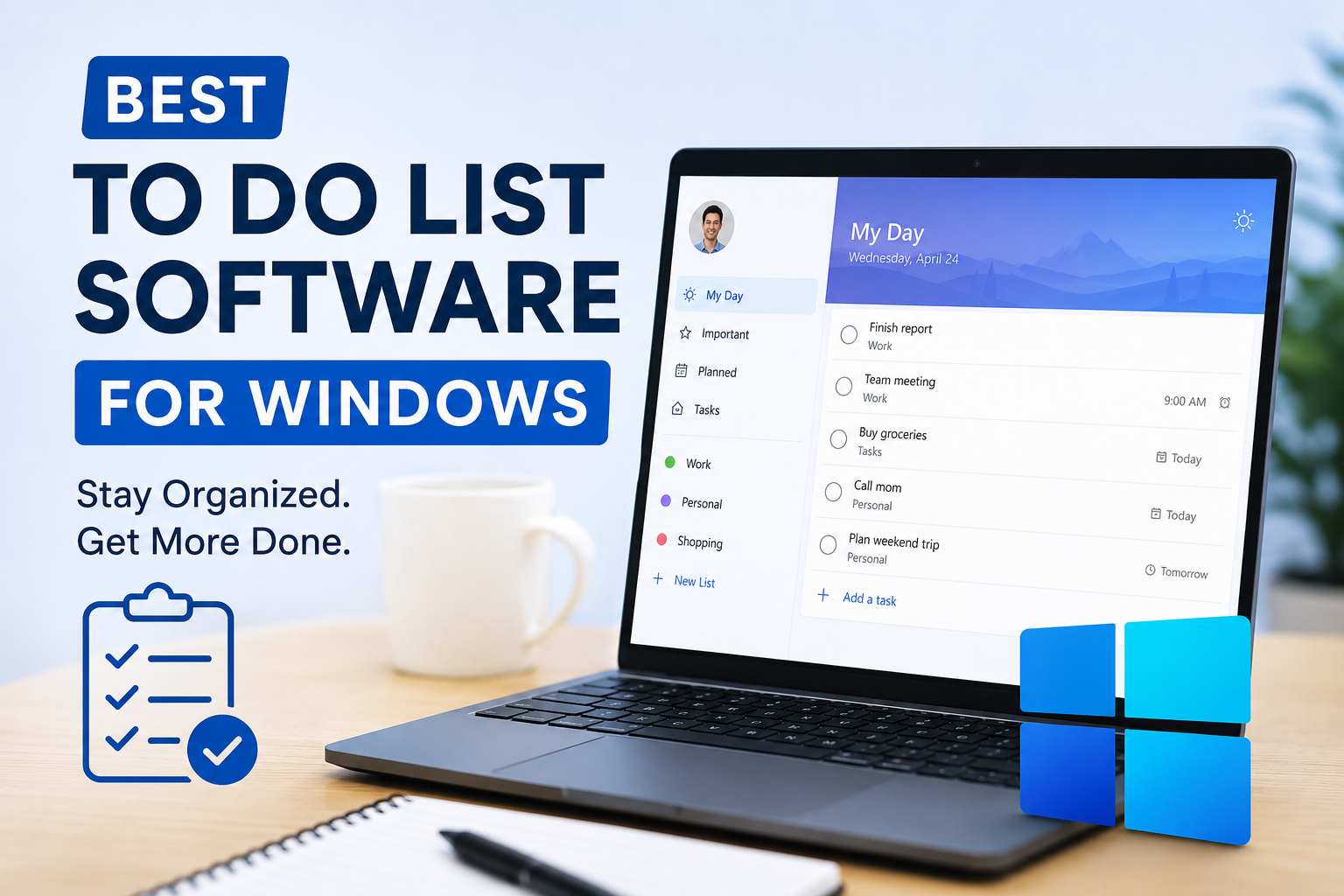
Microsoft To Do is one of the first applications I would recommend to Windows users who want something simple and easy to understand.
Because it comes from Microsoft, it works naturally within the Windows environment. The interface is clean, and the application does not feel overwhelming when I first open it.
One feature I particularly like is the ability to create separate lists for different areas of life. For example, I can have lists for work, personal tasks, shopping, study, or future plans.
The My Day feature is also useful. Instead of looking at hundreds of tasks at once, I can select the tasks that I want to focus on today.
Microsoft To Do also supports reminders, due dates, recurring tasks, notes, and subtasks. These features make it useful for both simple personal planning and more structured work.
In my opinion, Microsoft To Do is especially suitable for beginners who want a straightforward task manager without spending a lot of time learning complicated features.
Todoist
Todoist is another popular choice for Windows users, and I think it is a good option for people who want more powerful task management features.
What I like about Todoist is its balance between simplicity and advanced functionality. It does not look unnecessarily complicated, but it provides enough features for managing larger task lists.
I can organize tasks into projects and use labels and priorities to keep everything structured. This becomes helpful when I have several areas of work to manage at the same time.
Todoist also supports recurring tasks, reminders, deadlines, and subtasks. I can create a simple task such as completing a report or break a larger project into smaller steps.
Another useful feature is natural language task creation. Instead of manually selecting every setting, I can write a task with a date or recurring schedule, and the application can understand the information.
For someone who wants a professional task management experience without using a complicated project management system, I think Todoist is worth considering.
TickTick
TickTick is another application that I find interesting because it combines task management with several productivity features.
At its basic level, TickTick allows users to create tasks, organize lists, set deadlines, and create reminders. However, it goes beyond a simple checklist.
One feature I appreciate is the calendar functionality. Looking at tasks through a calendar can make it easier to understand how much work I have planned for a particular day or week.
TickTick also provides recurring tasks, priorities, subtasks, and different ways of organizing information.
For people who like productivity techniques, TickTick can be especially useful. It includes features designed around habits and focus, which can make the application feel more like a complete productivity system.
I would consider TickTick a good choice for someone who wants a task manager but also enjoys experimenting with different productivity methods.
Trello
Trello takes a different approach to task management. Instead of focusing primarily on traditional lists, it uses boards, lists, and cards.
I personally find this style useful when working on projects that contain multiple stages.
For example, I could create a board for a website project and have columns representing ideas, tasks that need to be completed, tasks currently being worked on, and completed work.
Each card can contain information such as descriptions, checklists, due dates, and other details.
This visual approach can make project progress easier to understand. When I move a card from one column to another, I can immediately see what has been completed and what still needs attention.
Trello may be more than a simple personal to do list application, but that is exactly why I would recommend it to people who manage projects or collaborate with other people.
Any.do
Any.do is designed for people who want a clean and straightforward way to manage everyday tasks.
The interface is relatively easy to understand, and users can create lists, reminders, recurring tasks, and subtasks.
One thing I like about simple task management applications is that they do not require a long setup process. I can open the application, add my tasks, and start working.
Any.do can be useful for managing personal responsibilities such as shopping, appointments, household tasks, and daily routines.
For users who do not need complicated project management features, a simpler application can sometimes be better. Too many features can actually become distracting.
Google Tasks
Google Tasks is another option worth considering, particularly for people who already use Google’s ecosystem.
The application focuses on basic task management. Users can create tasks, add dates, organize tasks into lists, and create subtasks.
I think Google Tasks is most useful for people who want something simple rather than a full productivity platform.
If my main requirement is remembering small tasks and keeping them organized, I do not necessarily need dozens of advanced features.
The biggest advantage for me is simplicity. There is less to learn, which means I can spend more time completing tasks instead of managing the task management system itself.
Things to Consider Before Choosing Software
Choosing the best to do list software depends on how you work.
The first thing I would consider is simplicity. If I only need a basic checklist, I would avoid choosing software that has a huge number of features.
The second thing is synchronization. If I regularly move between my Windows computer and smartphone, I would choose an application that can keep my tasks synchronized across devices.
Reminders are also important. A task list is much more useful when it can remind me about deadlines and recurring responsibilities.
Another factor is organization. If I have dozens or hundreds of tasks, features such as projects, labels, folders, priorities, and filters can become extremely useful.
I would also consider whether the application is suitable for personal use or team collaboration. Someone managing personal tasks may have completely different requirements from someone managing a business project.
Free or Paid To Do List Software?
Many task management applications provide free versions, and for many people, these may be enough.
If I only need basic lists, reminders, and simple organization, I would first try the free version before paying for additional features.
Paid plans can become useful when I need advanced reminders, more projects, additional storage, collaboration features, or advanced productivity tools.
My advice is not to pay simply because an application has more features. I would first determine which features I actually need.
Which To Do List Software Is Best?
There is no single application that is perfect for everyone.
If I wanted something simple and closely connected with Windows, I would consider Microsoft To Do.
If I wanted powerful task organization with a professional feel, Todoist would be one of the options I would look at.
If I wanted task management combined with additional productivity features, TickTick would be interesting.
For visual project management, I would consider Trello.
For simple everyday tasks, Any.do or Google Tasks may be enough.
The most important thing is to choose software that I will actually use consistently.
My Final Thoughts
A to do list application can seem like a small productivity tool, but I think it can have a surprisingly large impact on everyday work.
The biggest mistake I see people making is choosing an application with too many features and then becoming overwhelmed by it. In my opinion, the best task manager is not necessarily the one with the longest feature list. It is the one that makes it easier to organize tasks and actually complete them.
Windows users have plenty of good options, from simple checklist applications to advanced project management platforms.
Personally, I would start with a free option and use it for a few days or weeks. I would pay attention to whether it actually helps me stay organized. If I keep forgetting tasks, missing deadlines, or struggling to organize projects, then I would look for an application with more advanced features.
Ultimately, the best to do list software for Windows should fit the way I work. Whether I need a simple daily checklist or a complete system for managing multiple projects, there is likely an option that can make my work more organized and less stressful.
The important part is not simply creating a long list of tasks. The real benefit comes from using that list consistently, setting realistic priorities, and actually taking action on the tasks I have written down.